
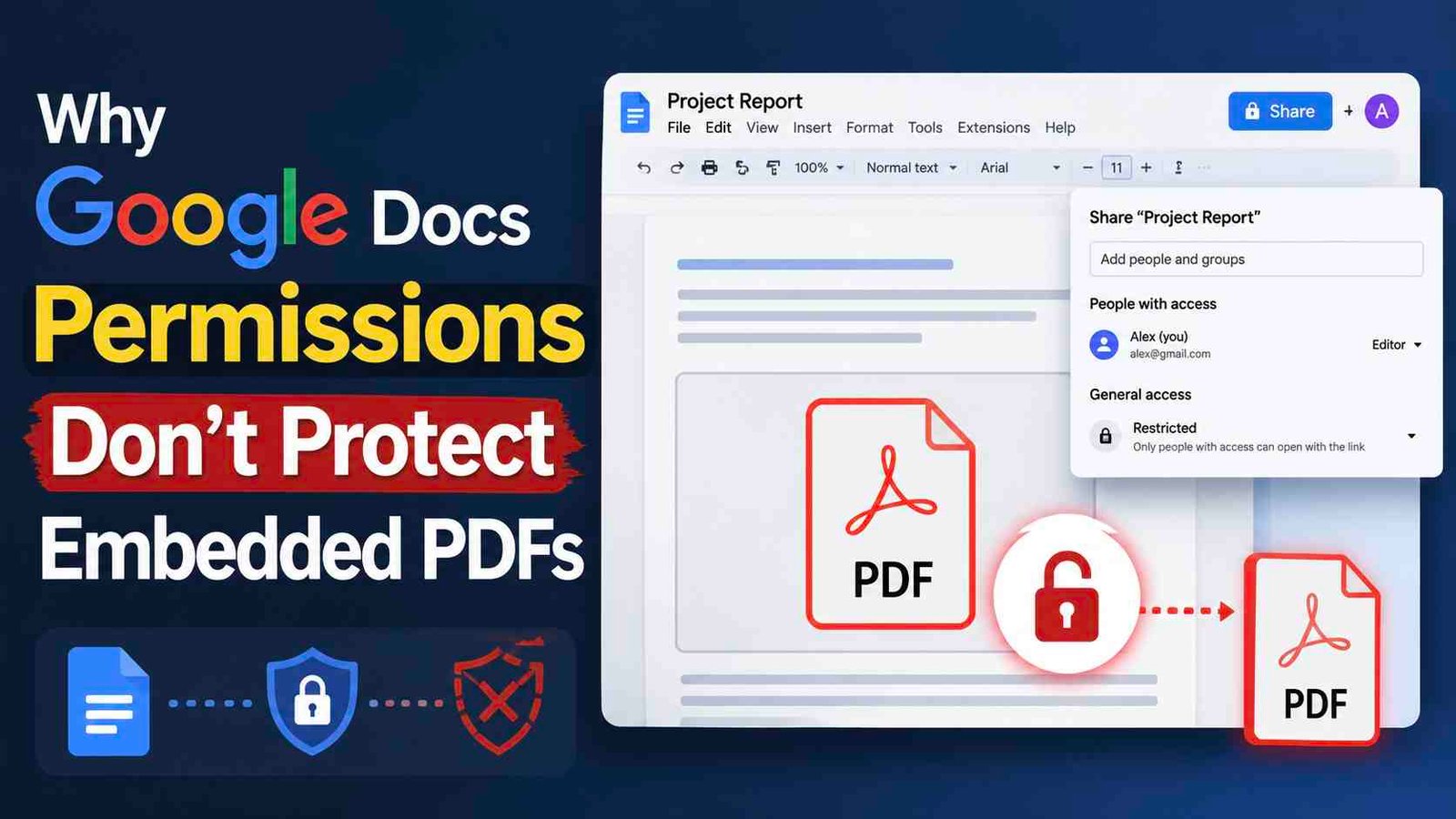
Why Google Docs Permissions Don’t Protect Embedded PDFs
Most teams assume that setting a Google Doc to “view only” or restricting downloads means the content inside is locked down. But that assumption falls apart the moment you embed a PDF. The permissions you set on the parent document don’t automatically extend to every file inside it, and that gap creates real exposure for sensitive data. Understanding why Google Docs permissions fail to protect embedded PDFs is the first step toward closing a vulnerability that most organizations don’t even realize exists.
Understanding the False Security of Restricted Docs
Google Docs offers a familiar set of sharing controls: viewer, commenter, editor, and the option to disable downloading, printing, and copying. These controls feel comprehensive. But they were designed for native Google file types, not for embedded third-party content like PDFs. The moment you insert or link a PDF inside a Doc, you’re dealing with two separate permission systems that don’t talk to each other.
Difference Between View-Only and Restricted Access
View-only access prevents someone from editing a document, but it doesn’t stop them from seeing everything in it, including embedded previews of PDFs. Restricted access goes a step further by disabling the download and print options on the Doc itself. The catch is that these restrictions apply to the Google Doc wrapper, not to the underlying PDF file stored in Drive. A user who can see the preview can often find a path to the original file.
How Google Drive Handles Embedded vs. Native Content
Native content (text, tables, images pasted directly into a Doc) inherits the document’s permissions. Embedded PDFs, however, are separate Drive objects linked into the document. Google renders a preview, but the actual file lives independently in Drive with its own sharing settings. If those settings are more permissive than the Doc’s, or if the PDF sits in a shared folder, anyone with the right link can access it outside the document entirely.
Technical Vulnerabilities of Embedded PDF Previews
Even when you’ve been careful with sharing settings, the way Google renders embedded content introduces technical weaknesses that a moderately curious user can exploit without any hacking skills.
Direct Links to Google Drive Source Files
When a PDF is embedded in a Google Doc, the preview is generated from the source file’s Drive URL. That URL is visible in the document’s underlying HTML. Anyone who right-clicks the preview, inspects the page source, or simply hovers over the embedded element can extract the direct link. If the PDF’s own sharing permissions allow access, they can download it freely, bypassing every restriction you placed on the parent Doc.
Browser Cache and Developer Tool Exploitation
Browsers cache rendered content locally. When someone views an embedded PDF preview, portions of that file are stored in the browser’s temporary files. Using built-in developer tools (available in Chrome, Firefox, and Edge with a single keystroke), a viewer can locate cached data and reconstruct the file. No special software is needed: this is standard browser functionality that any employee or contractor can use.
Inheritance Issues in Google Workspace Permissions
Google Workspace’s permission model is powerful but fragile, especially when documents and their embedded files live in different locations within your Drive hierarchy.
Shared Folders and Broken Permission Chains
If you move a PDF into a shared team folder and then embed it in a restricted Doc, the folder’s permissions take precedence. Everyone with access to that folder can open the PDF directly, regardless of the Doc’s settings. Permission chains break silently: Google doesn’t warn you that the embedded file is more accessible than the document containing it. This mismatch is one of the most common reasons sensitive data leaks from otherwise well-managed Workspace environments.
The Risk of ‘Anyone with the Link’ Settings
The “anyone with the link” setting is a convenience feature that becomes a liability fast. A PDF set to link-sharing can be accessed by anyone who extracts or guesses the URL. Once that link is shared in a chat, email, or screenshot, the file is effectively public. Google’s own sharing interface makes it easy to flip this setting on during a rushed collaboration and forget to turn it off.
Common Scenarios Where Sensitive Data Leaks
Understanding the technical gaps is one thing. Seeing how they play out in practice makes the risk concrete.
Third-Party Add-ons and API Access
Google Workspace supports thousands of third-party add-ons, many of which request broad file access permissions during installation. An add-on with Drive read access can silently index and export embedded PDFs from any document the user can view. API integrations built by internal teams can do the same. Unless you’re auditing OAuth scopes regularly, you likely have apps with more access than you realize.
Public Web Publishing via ‘Publish to Web’
Google Docs includes a “Publish to Web” feature that creates a publicly accessible version of the document. When activated, embedded PDF previews become visible to anyone on the internet, with no authentication required. This feature is separate from sharing settings and is easy to enable accidentally. A single click can expose confidential financial reports, legal agreements, or HR documents to the open web.
Best Practices for Secure PDF Distribution
If Google Docs permissions can’t reliably protect embedded PDFs, the solution is to apply security at the file level rather than relying on the platform’s access controls.
Using Password Protection at the File Level
Password-protecting a PDF before uploading it to Drive adds a layer of defense independent of Google’s sharing model. Tools like Adobe Acrobat allow you to set open passwords and restrict printing or editing. The limitation: passwords can be shared alongside the file, and free tools like SmallPDF or ABBYY FineReader can strip basic PDF restrictions in seconds. Password protection slows casual access but won’t stop a determined user.
Dedicated Virtual Data Rooms vs. Google Docs
For genuinely sensitive documents, virtual data rooms (VDRs) and dedicated DRM platforms offer controls that Google Docs simply doesn’t: dynamic watermarking, device binding, expiration dates, and remote revocation. The tradeoff is convenience. VDRs add friction to collaboration, and DRM solutions require recipients to use specific viewers. But if the document contains trade secrets, M&A data, or regulated information, that friction is the point.
Auditing Your Document Security Settings
A quarterly audit of your Google Workspace sharing settings is the minimum. Start by running a Drive audit log report to identify files set to “anyone with the link” or shared outside your organization. Check OAuth app permissions for any third-party tools with broad Drive access. Review embedded files in critical documents to confirm their individual sharing settings match your intent. Google’s Admin Console provides these reports natively for Workspace Business and Enterprise plans: use them.
The pattern is clear: Google Docs permissions are a screen door, not a vault. They control who can edit or comment on a document, but they don’t extend meaningful protection to embedded PDFs. Treating platform-level access controls as your only line of defense leaves sensitive files exposed to extraction through browser tools, shared folder inheritance, third-party apps, and simple link sharing.
If your organization distributes PDFs that contain proprietary or regulated content, consider a purpose-built document security solution. Locklizard specializes in PDF DRM with controls like device-locked viewing, print restrictions that can’t be stripped, and the ability to revoke access remotely, even after a file has been downloaded.